How to Create a Conversation
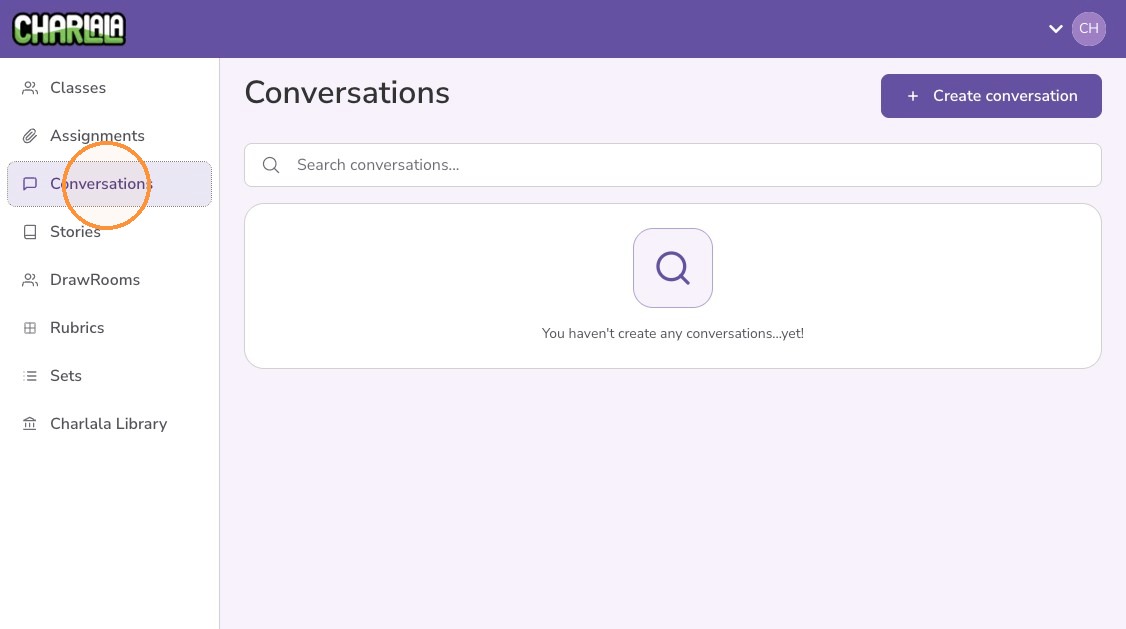
1. Click "Conversations" from the left menu
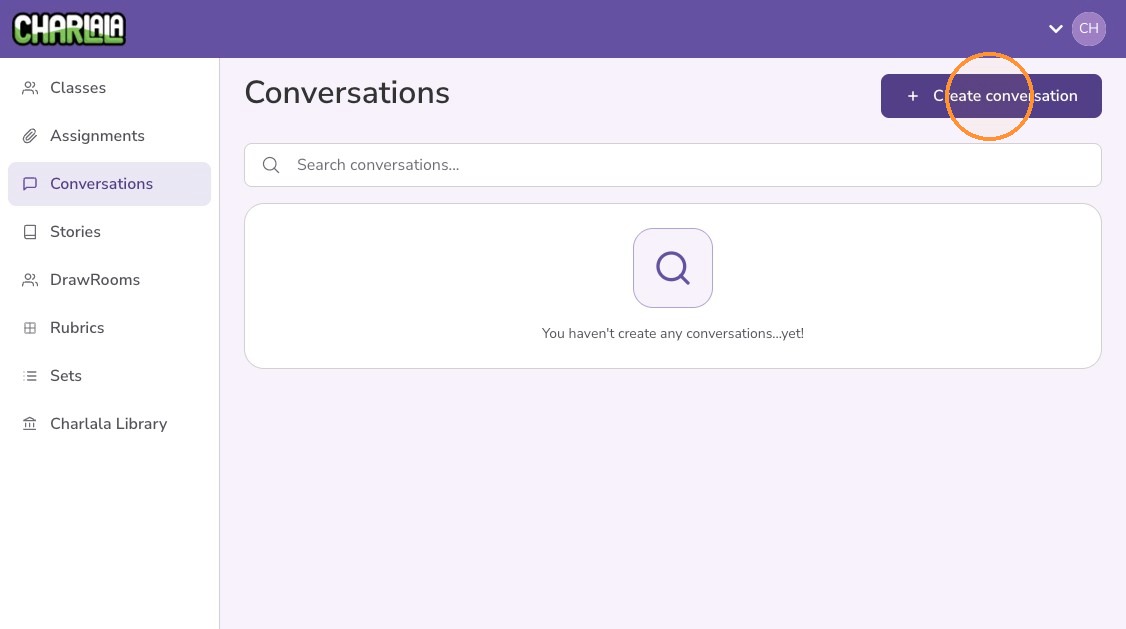
2. Click "Create conversation"
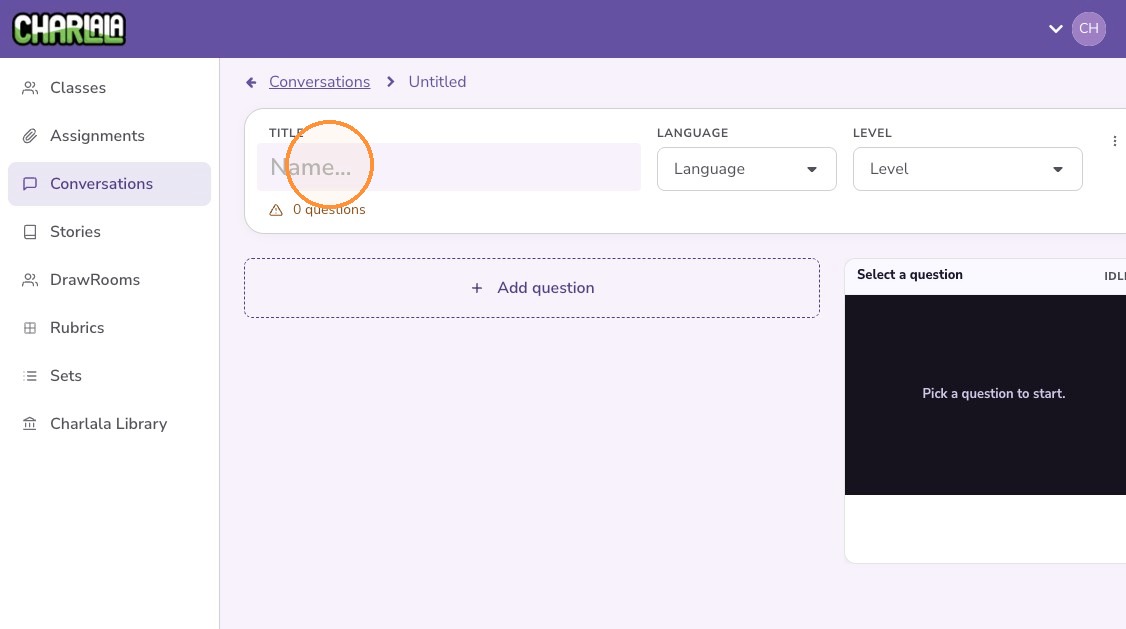
3. Give the conversation a title
4. Optionally, set the target language of the conversation
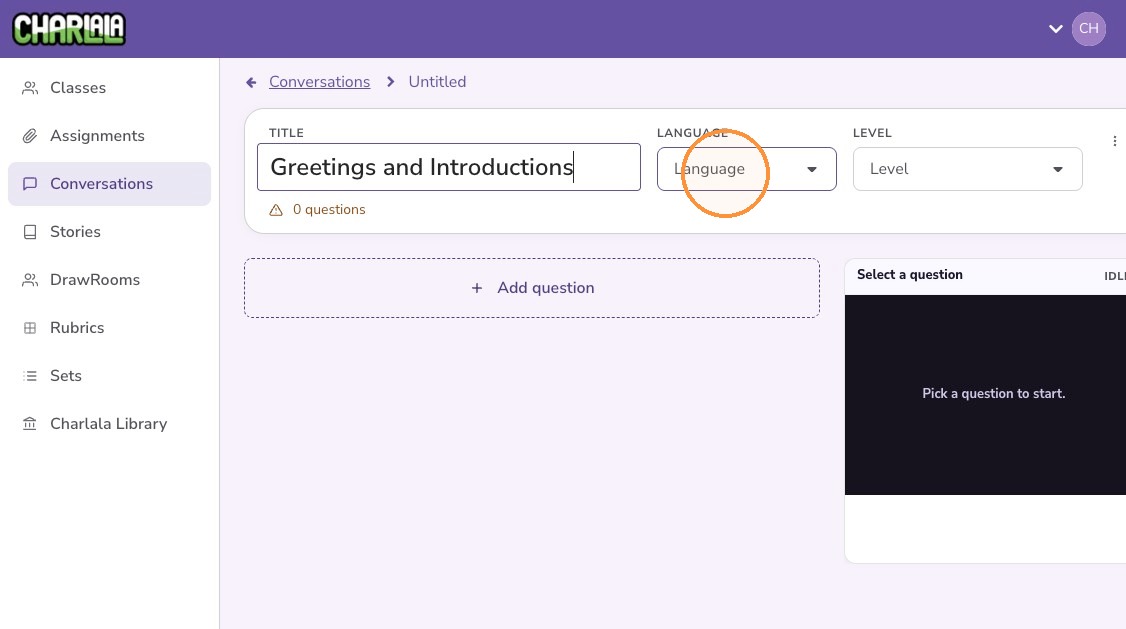
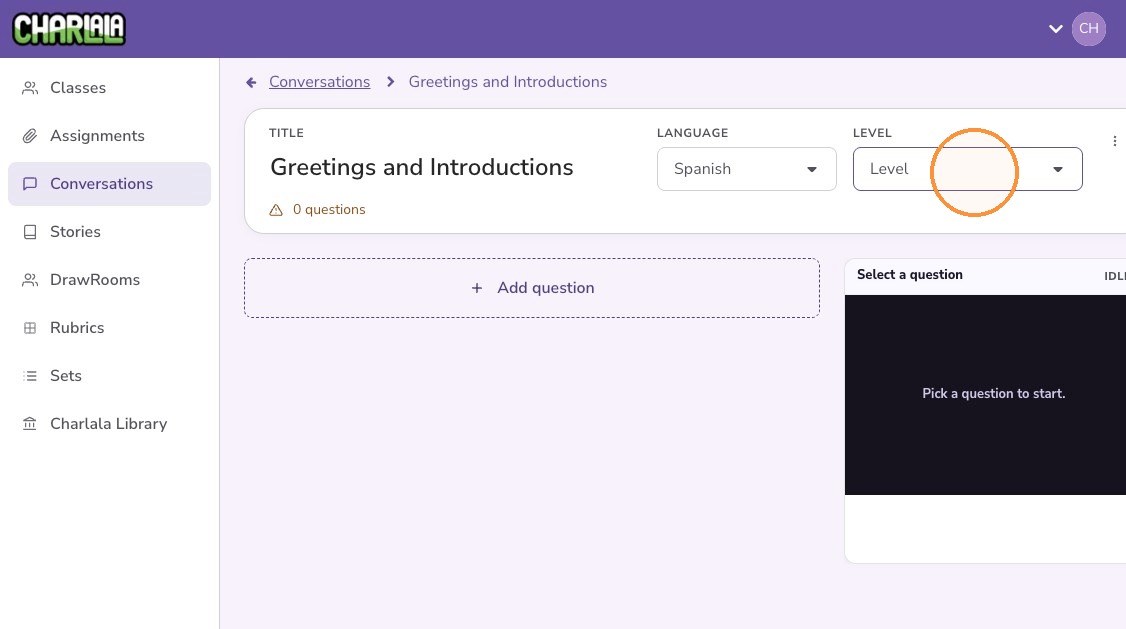
5. Optionally, set the level of the conversation
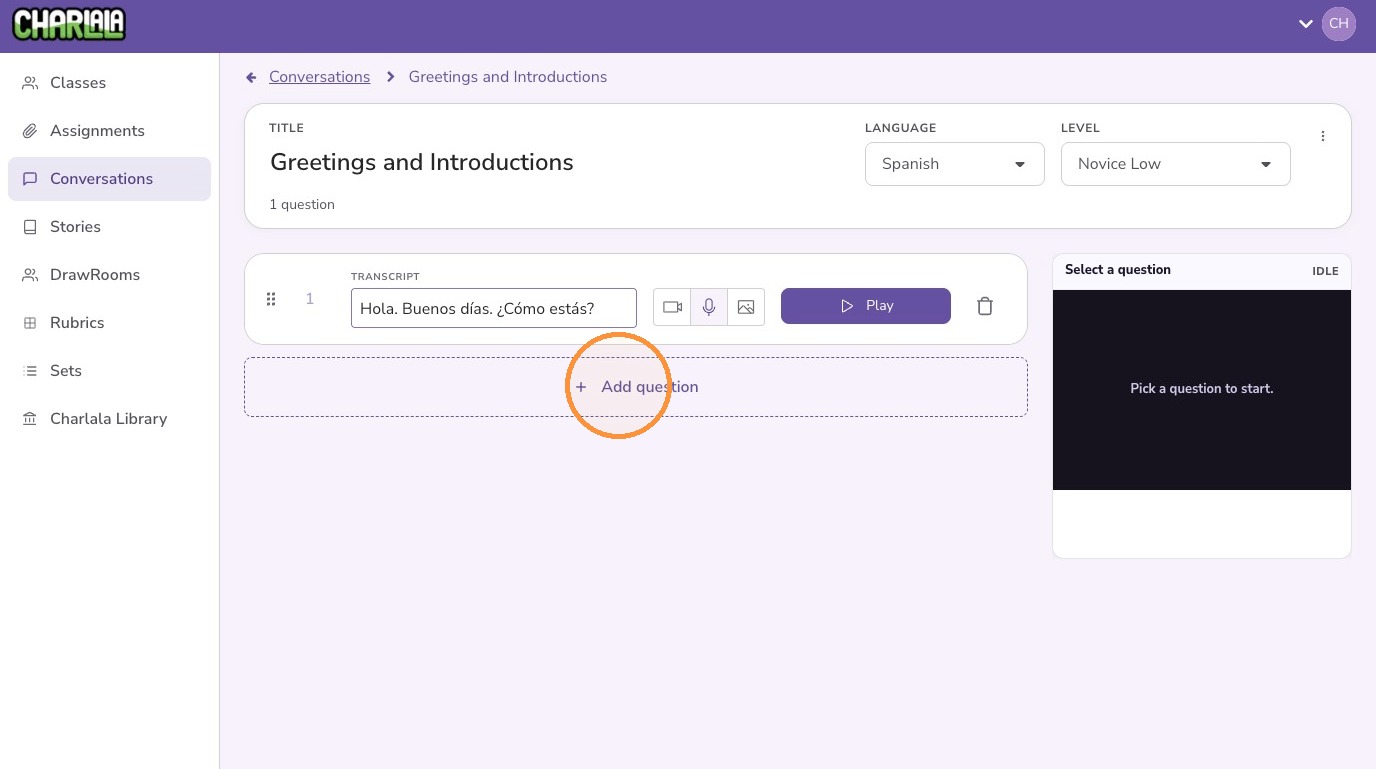
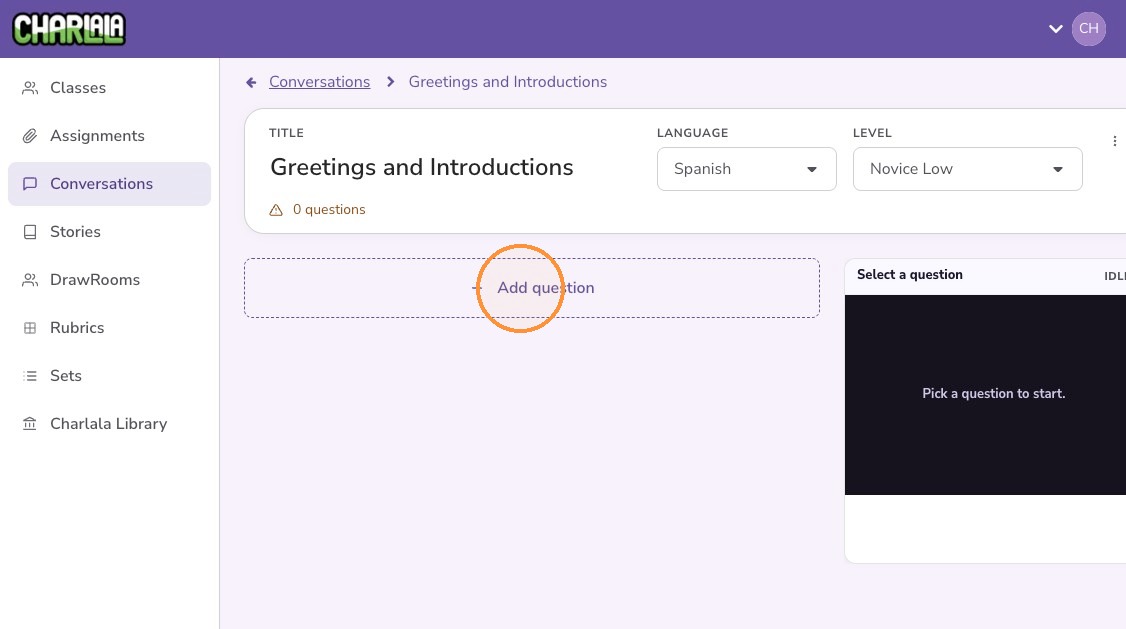
6. Click "Add question"
7. It is recommended to add a text transcript of the question or prompt. The transcript can optionally be displayed to students during assignments, and it also makes grading and feedback easier by keeping the prompt immediately visible to teachers.
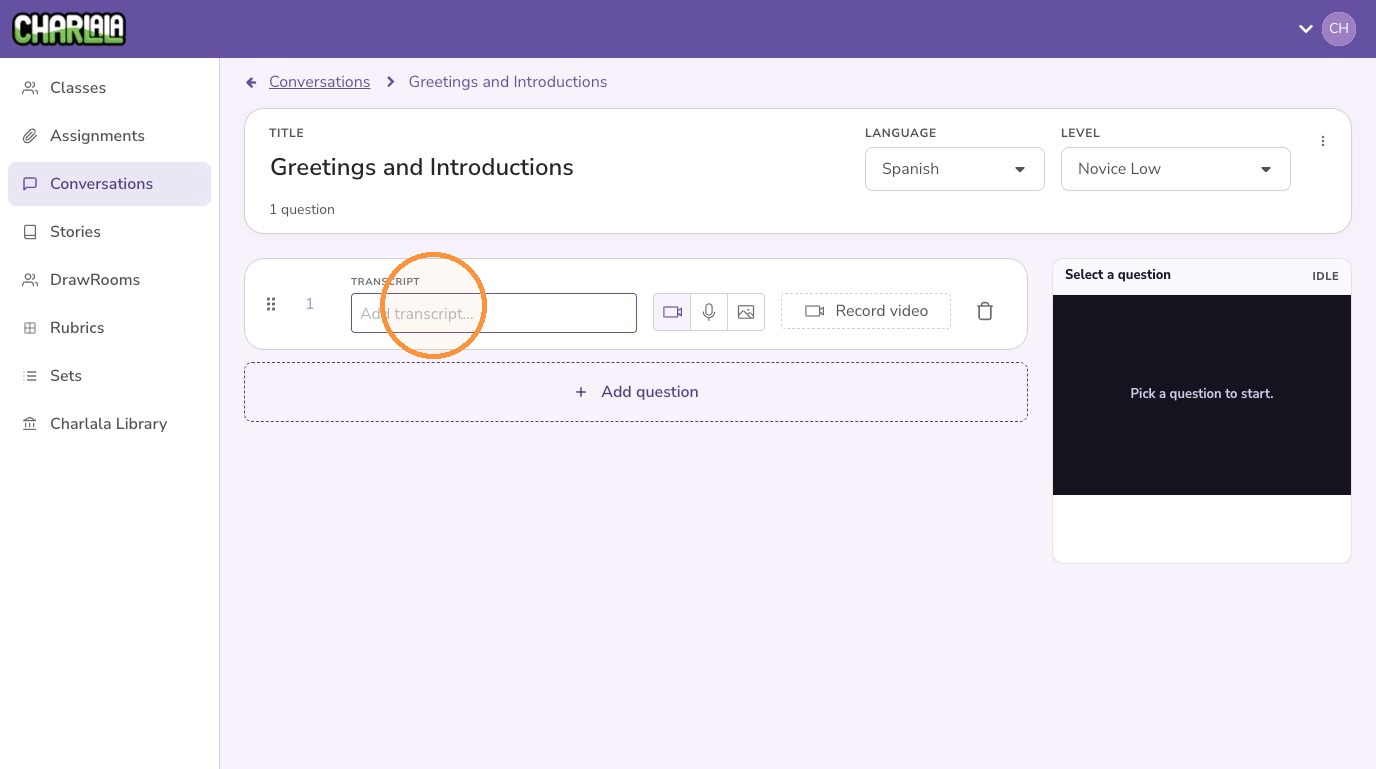
8. Select the type of content that will prompt students: video, audio, or image
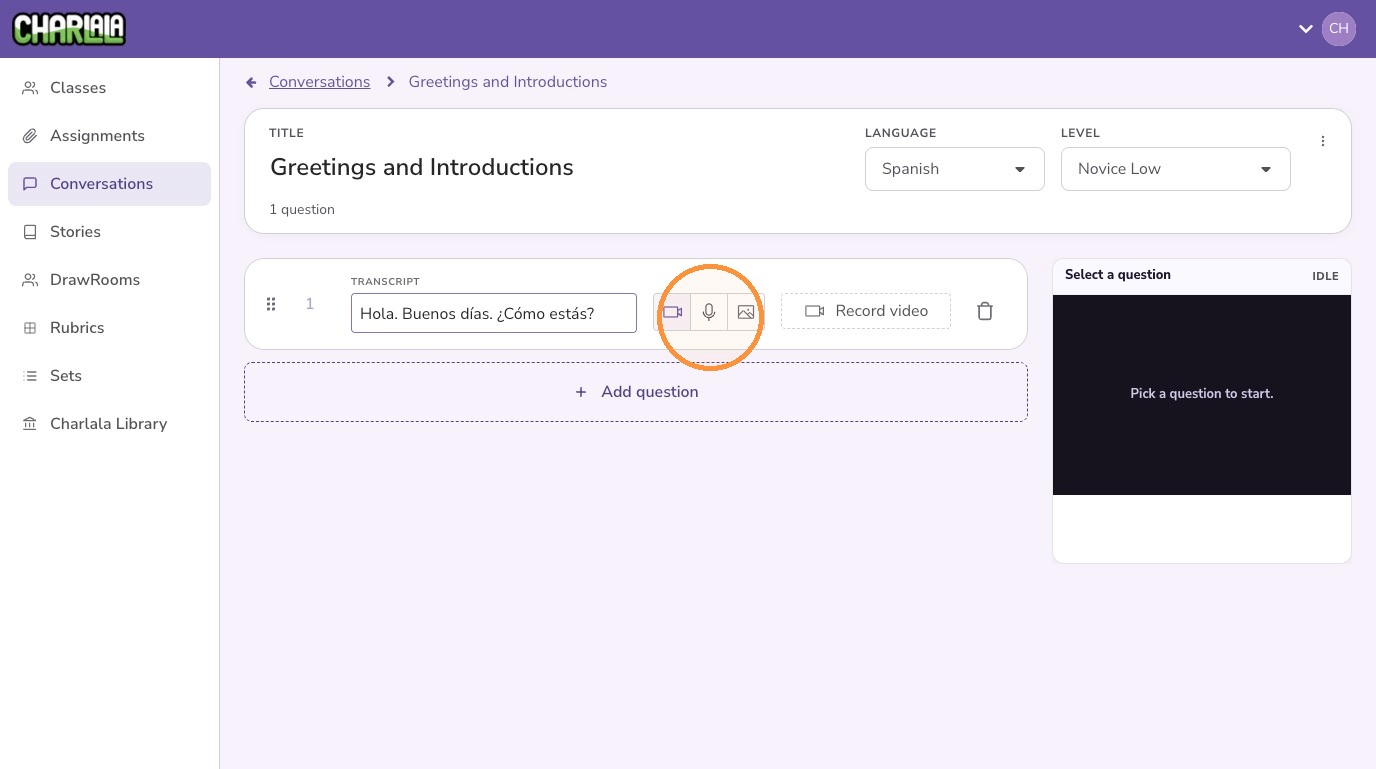
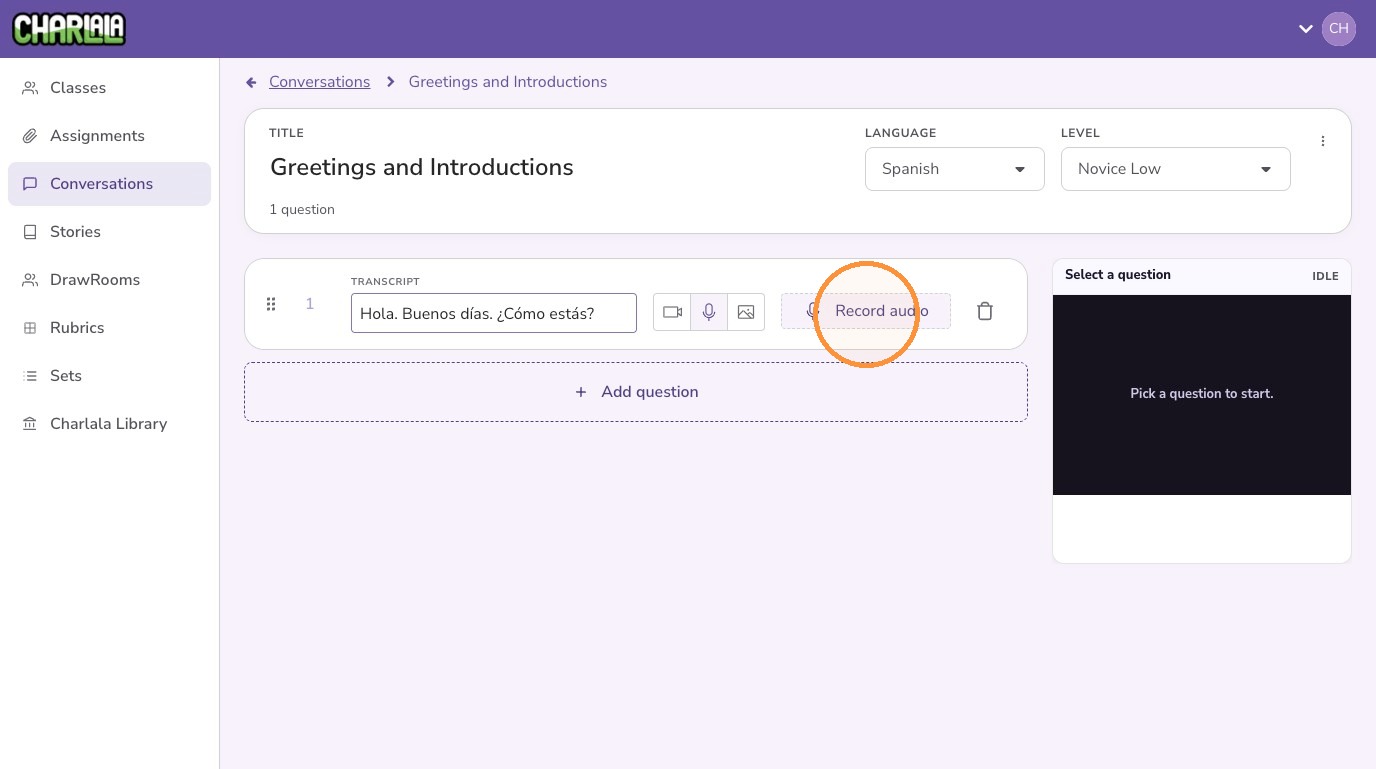
9. Click "Record audio"
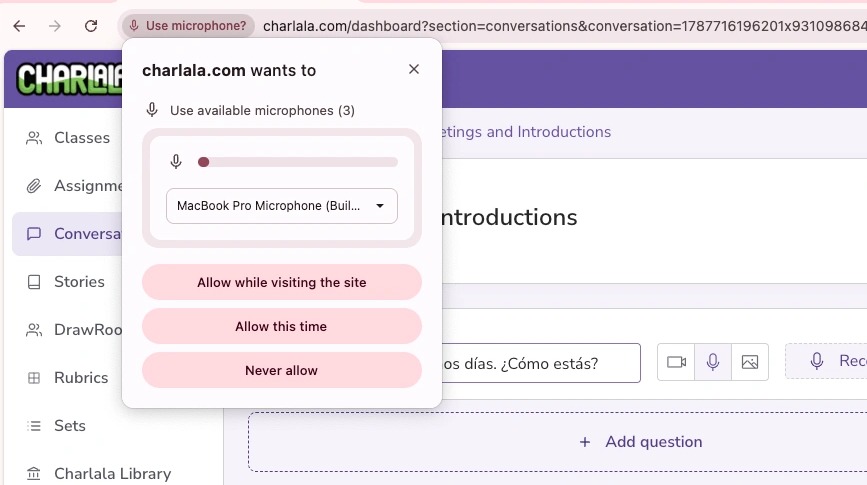
10. Grant Charlala access to your microphone and/or camera.
11. Click "Start recording"
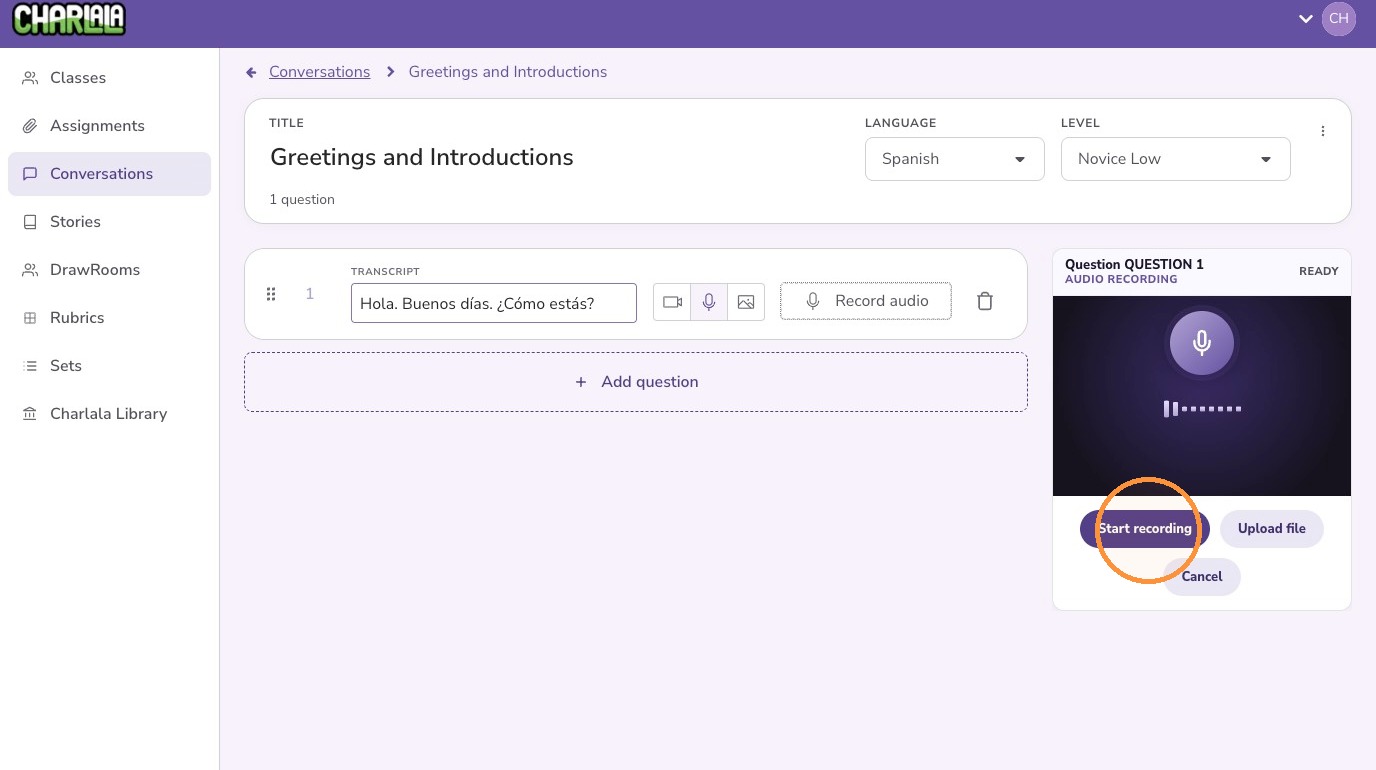
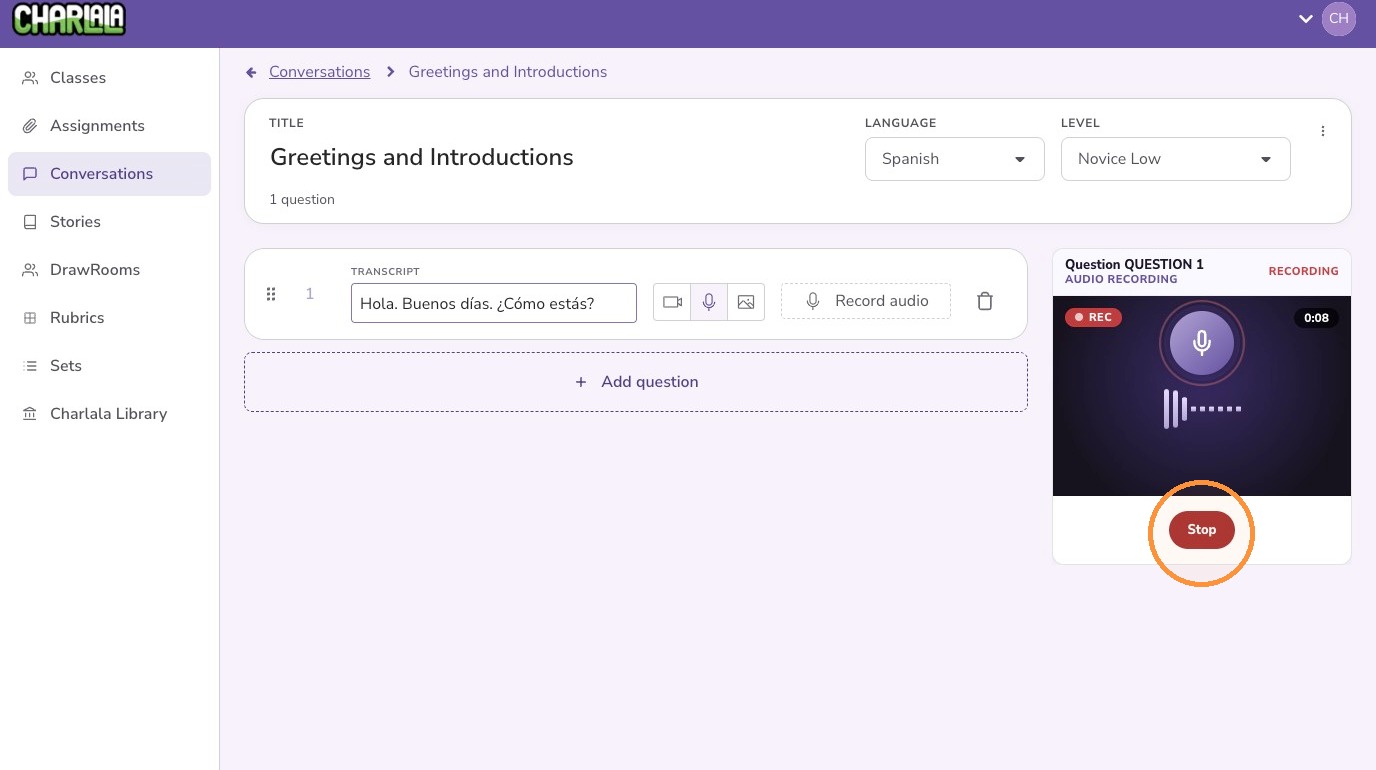
12. Record the prompt and click "Stop"
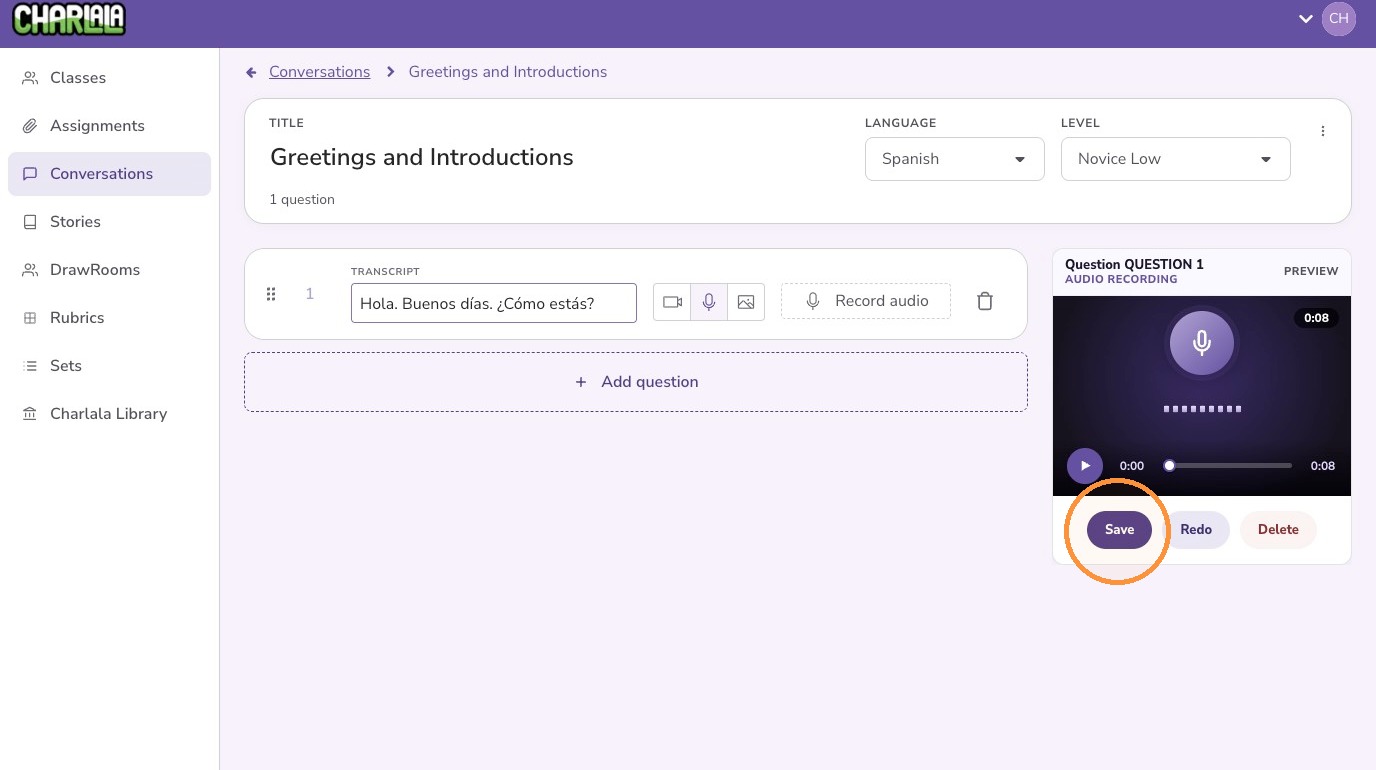
13. Review the recording and re-record it until you’re satisfied, then click “Save”
14. Click "Add question" to add additional questions