
How to Create a DrawRoom: Conversation Mode
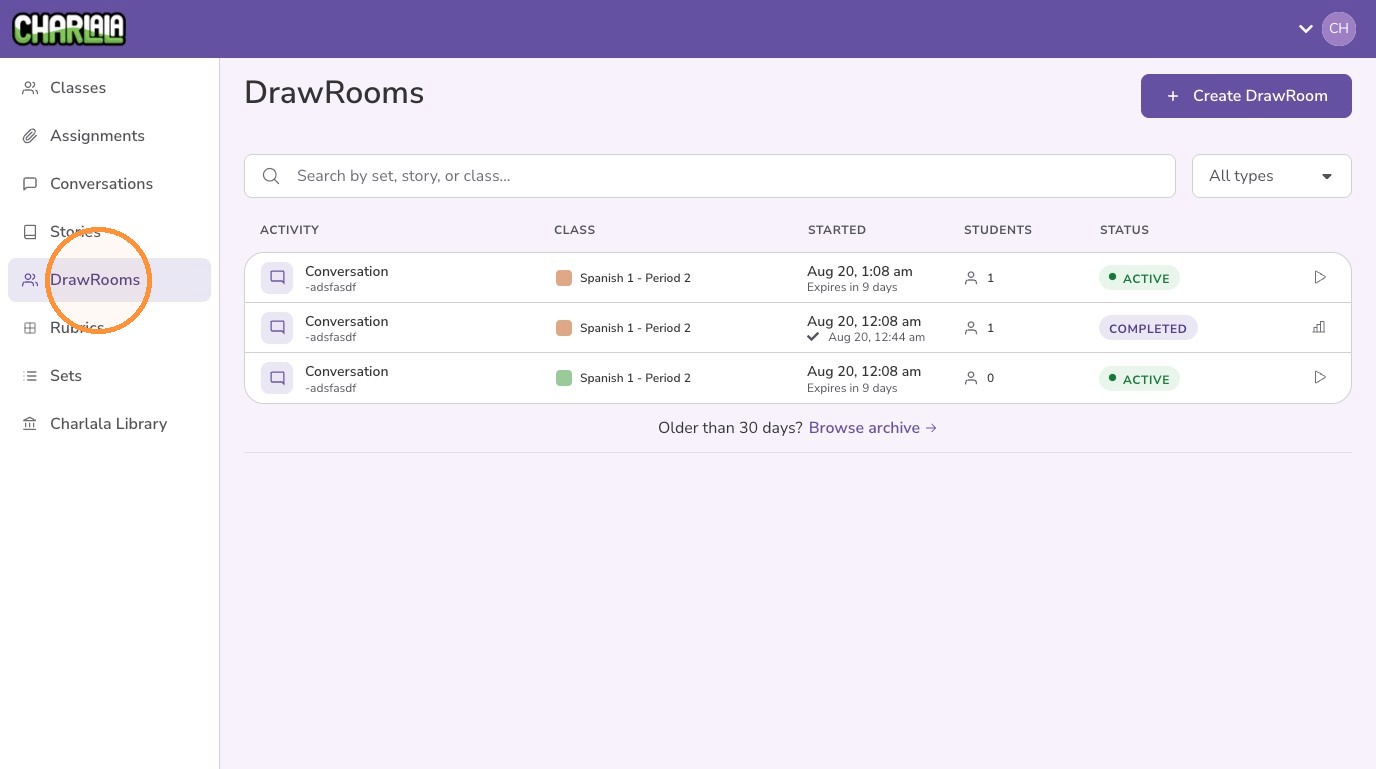
1. Click "DrawRooms" from the left menu
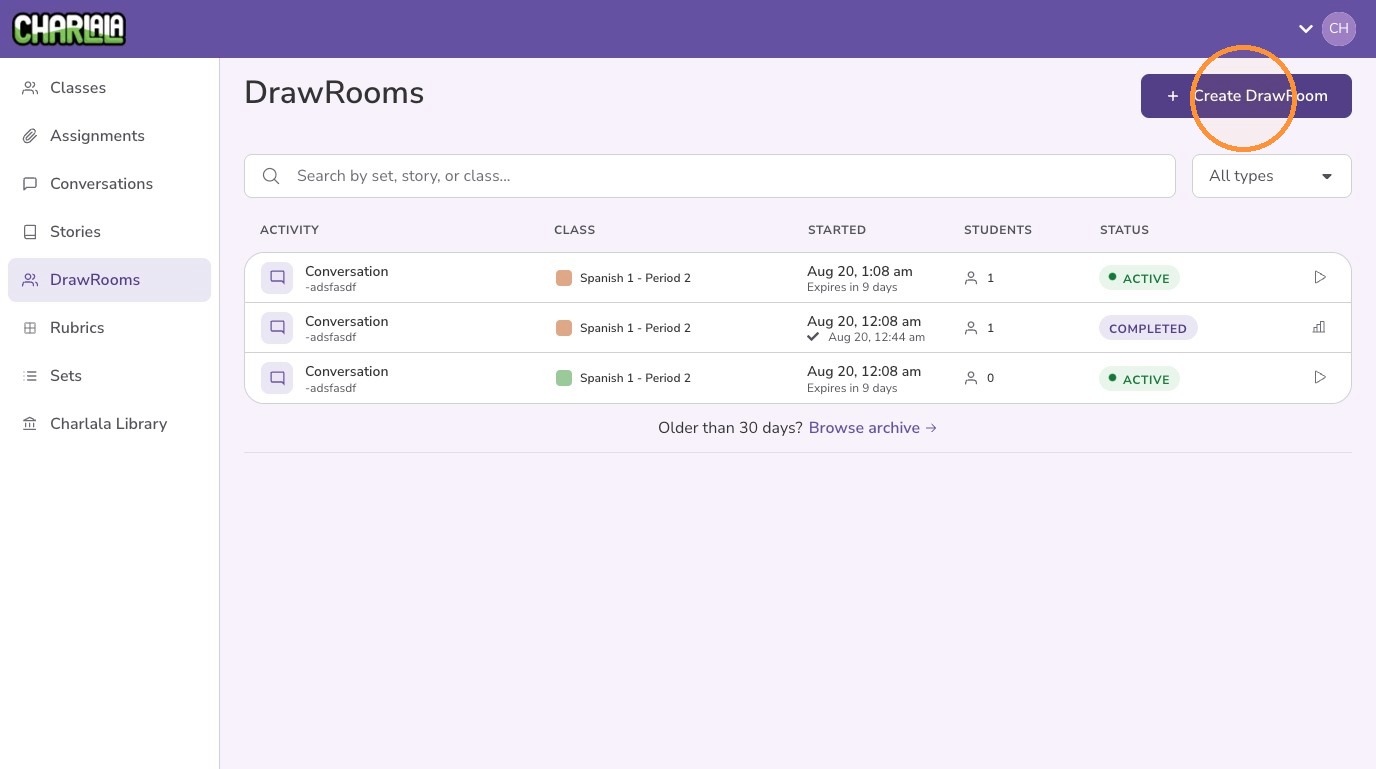
2. Click "Create DrawRoom"
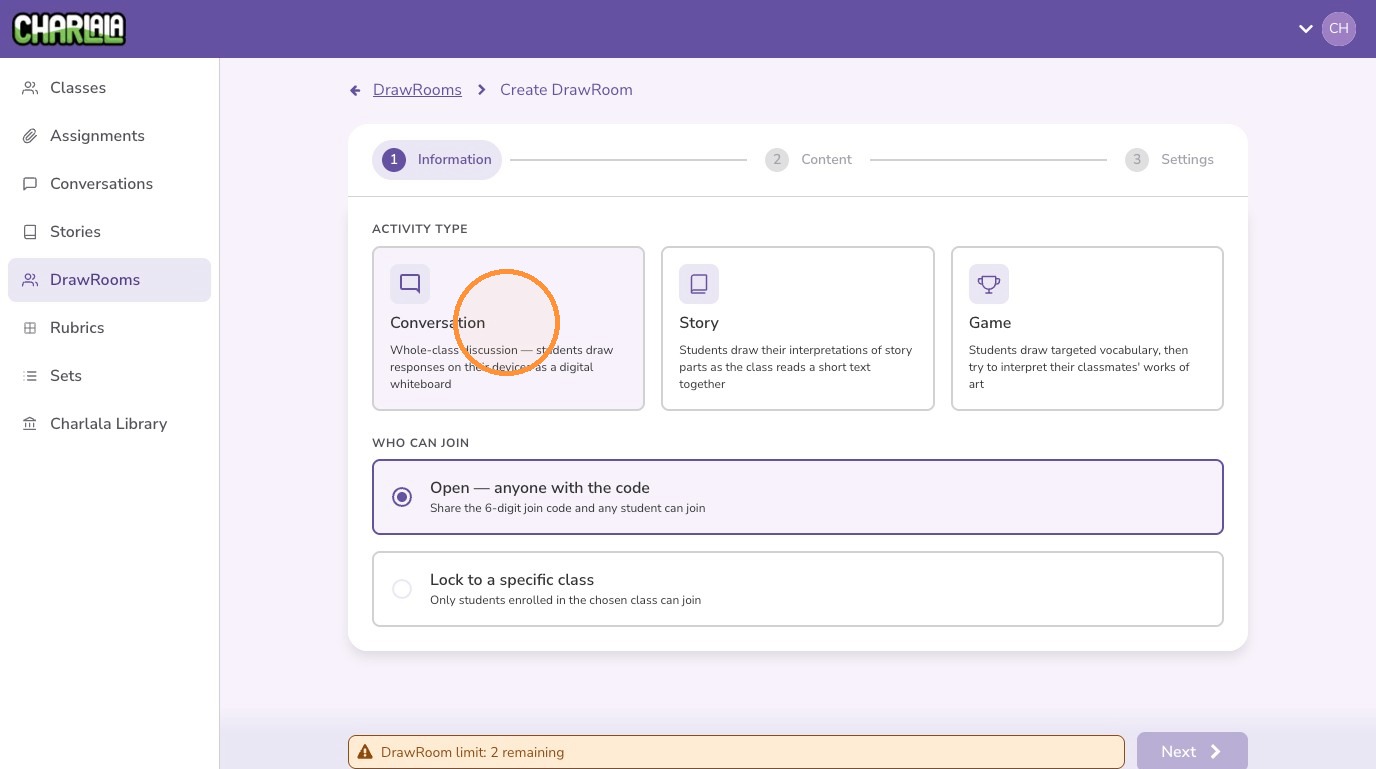
3. Click "Conversation"
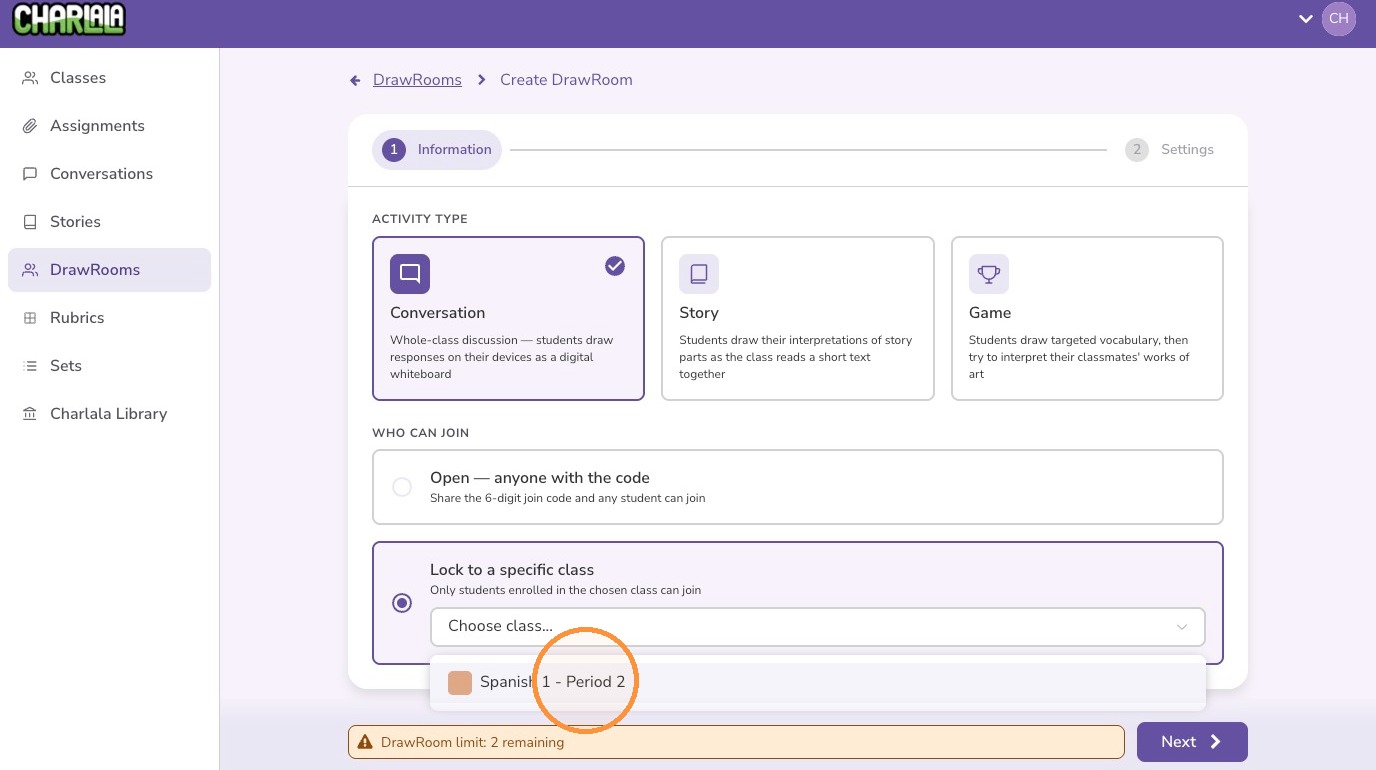
4. It is recommended to lock the activity to a specific class to help deter inappropriate access
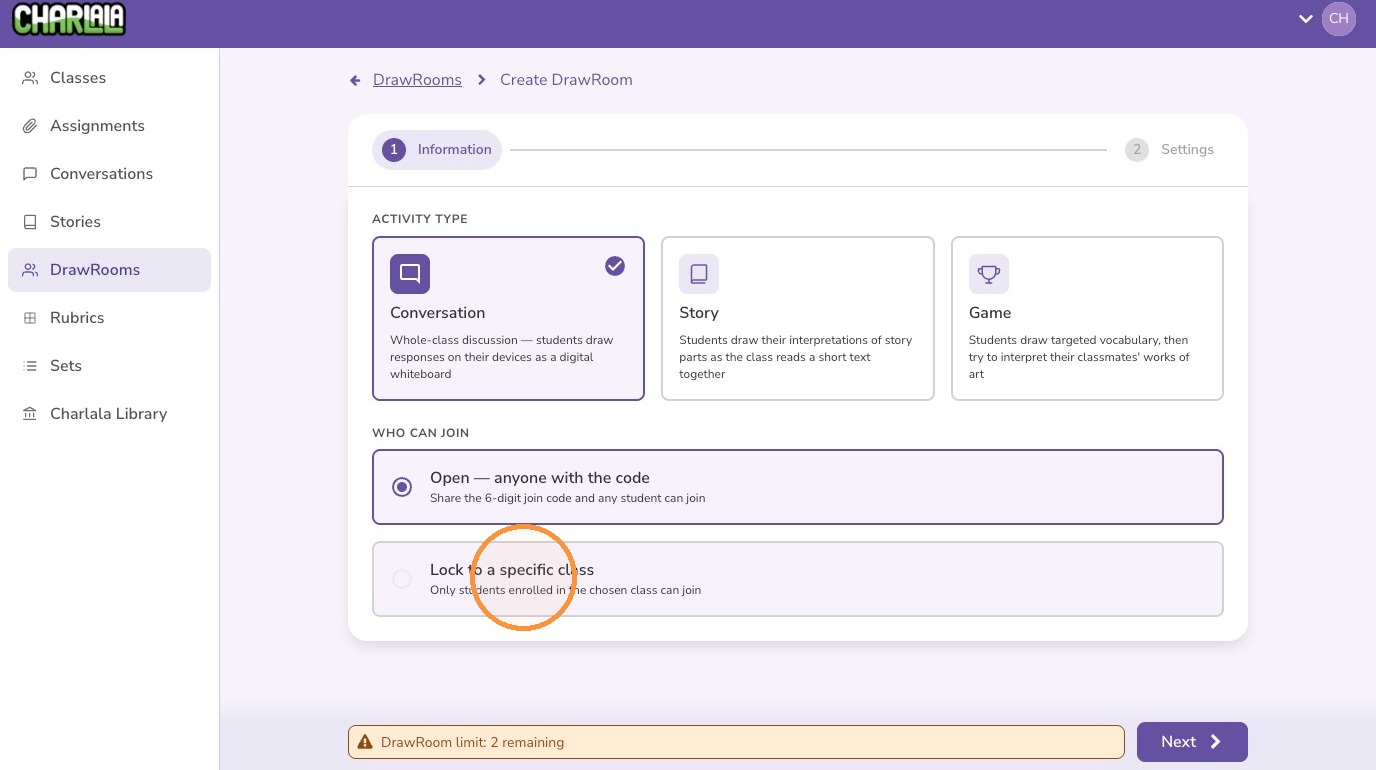
5. Select the class from the menu
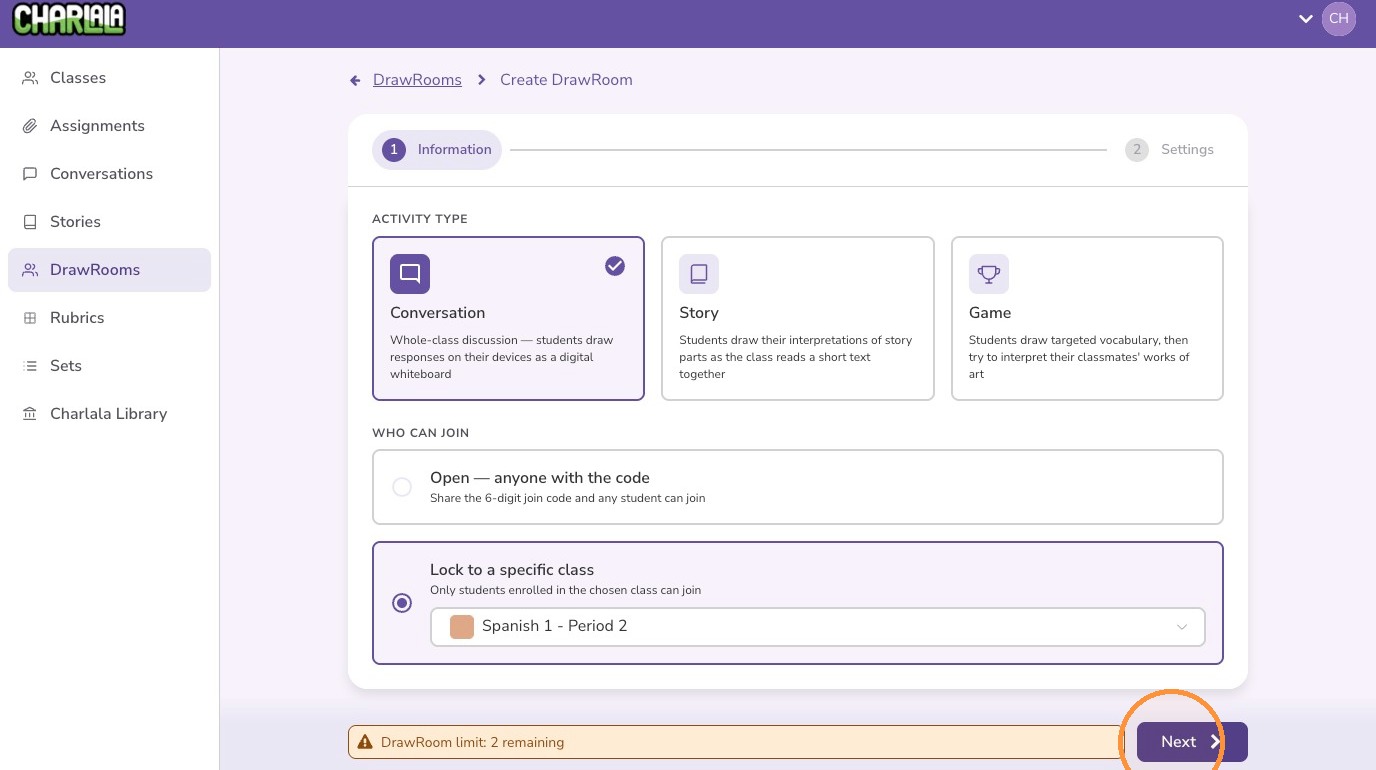
6. Click "Next"
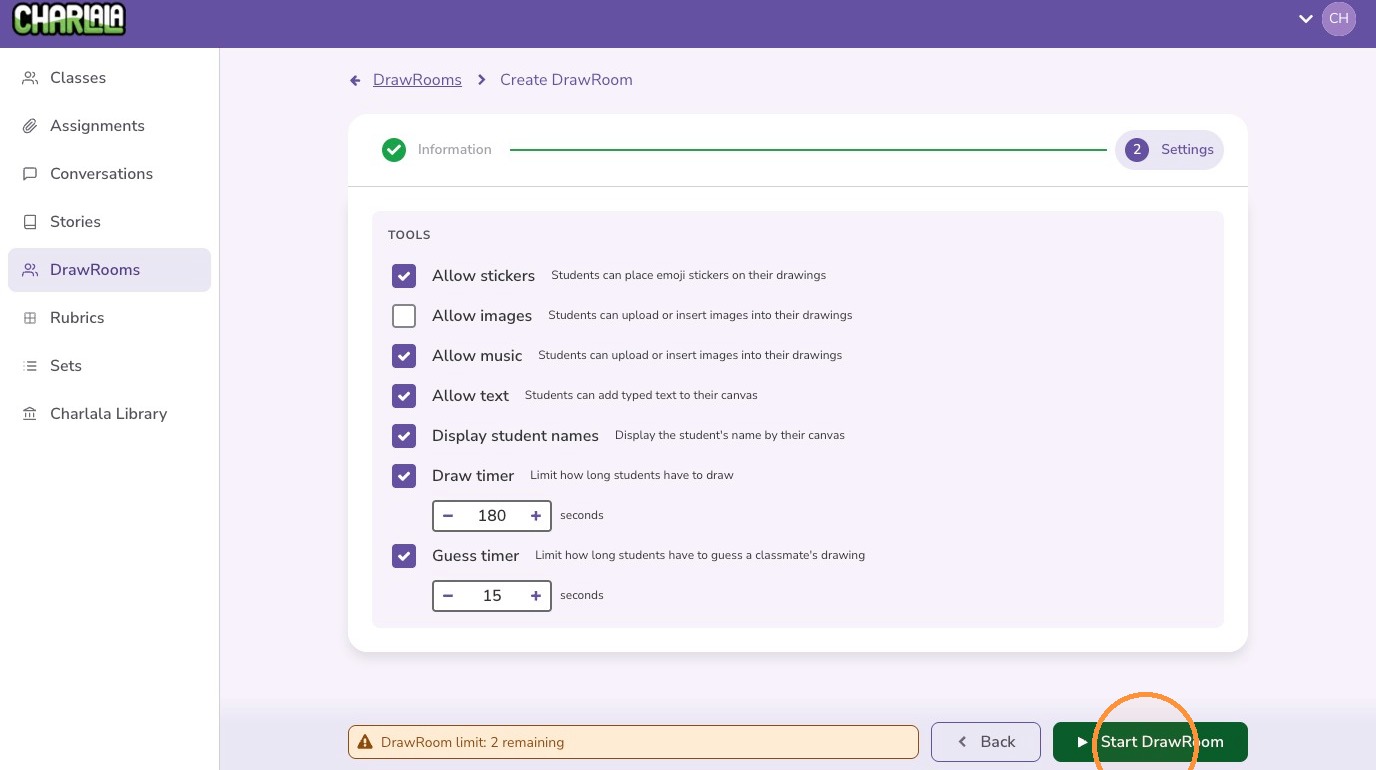
7. Adjust the settings the customize the activity and click "Start DrawRoom"
8. To join the activity, students should visit https://charlala.com/draw and enter the room code. You may also "Copy join link" and share directly with students to prefill the code.
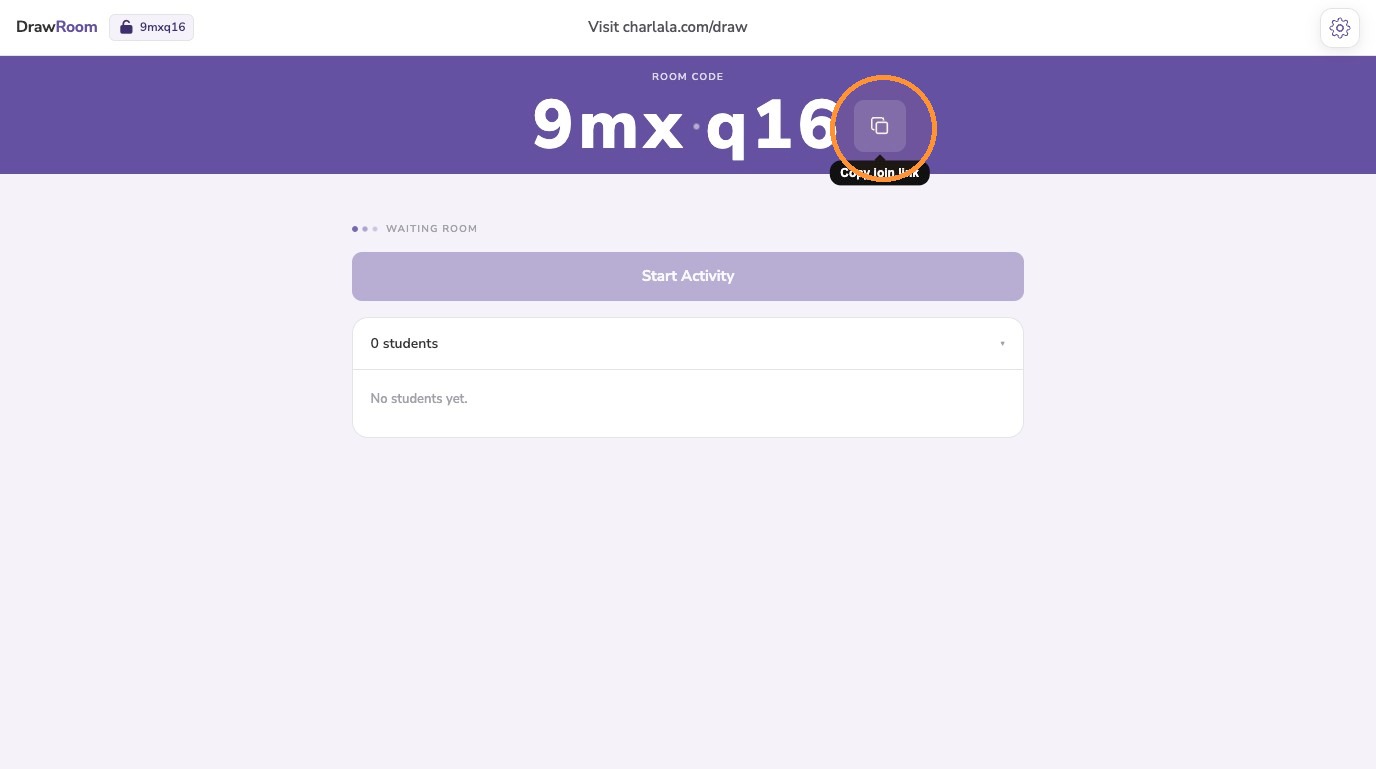
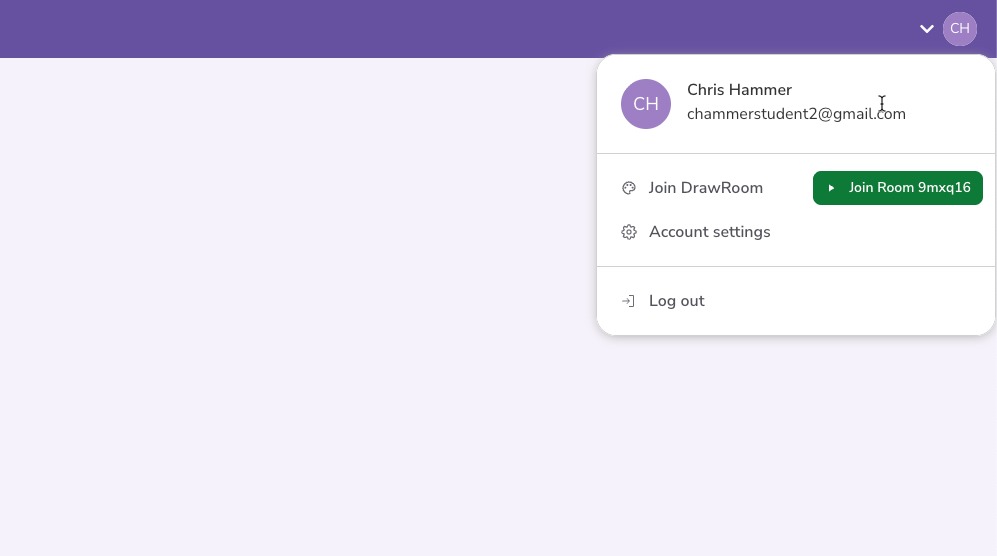
Tip: Locking the activity to a specific class provides students with a quick-access button to join the activity directly from their account menu
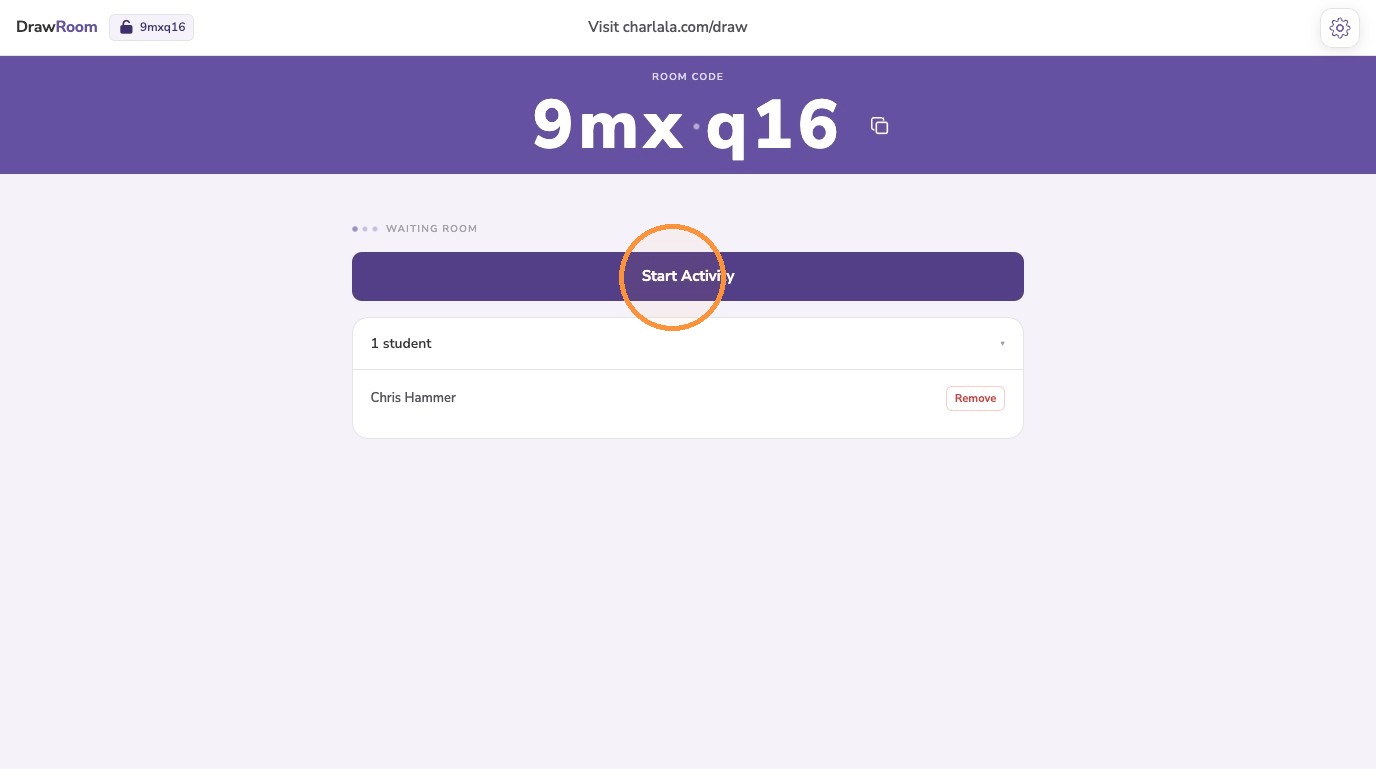
9. After all students have joined, click "Start Activity" to begin
The video below shows the previous version of DrawRoom's conversation mode. Use it to understand the concept only — the activity interactions and UI/UX have since changed. An updated demo video is coming soon.